Clearing Your Cache
Purpose/Overview
In this article, you will learn how to clear your browser or mobile app cache. Clearing cached data helps resolve login issues, loading errors, missing updates, and unexpected system behavior. This process ensures you are viewing the most accurate and up‑to‑date version of the application.
Navigation Path:
To access this feature, go to: Browser Settings > Privacy & Security > Clear Browsing Data
Things to Know:
Permissions: No special permissions are required; any user can clear their own cache.
Device Differences: Steps vary between browsers.
Impact: Clearing the mobile app cache may delete unsaved data. Ensure any important photos or attachments are backed up first.
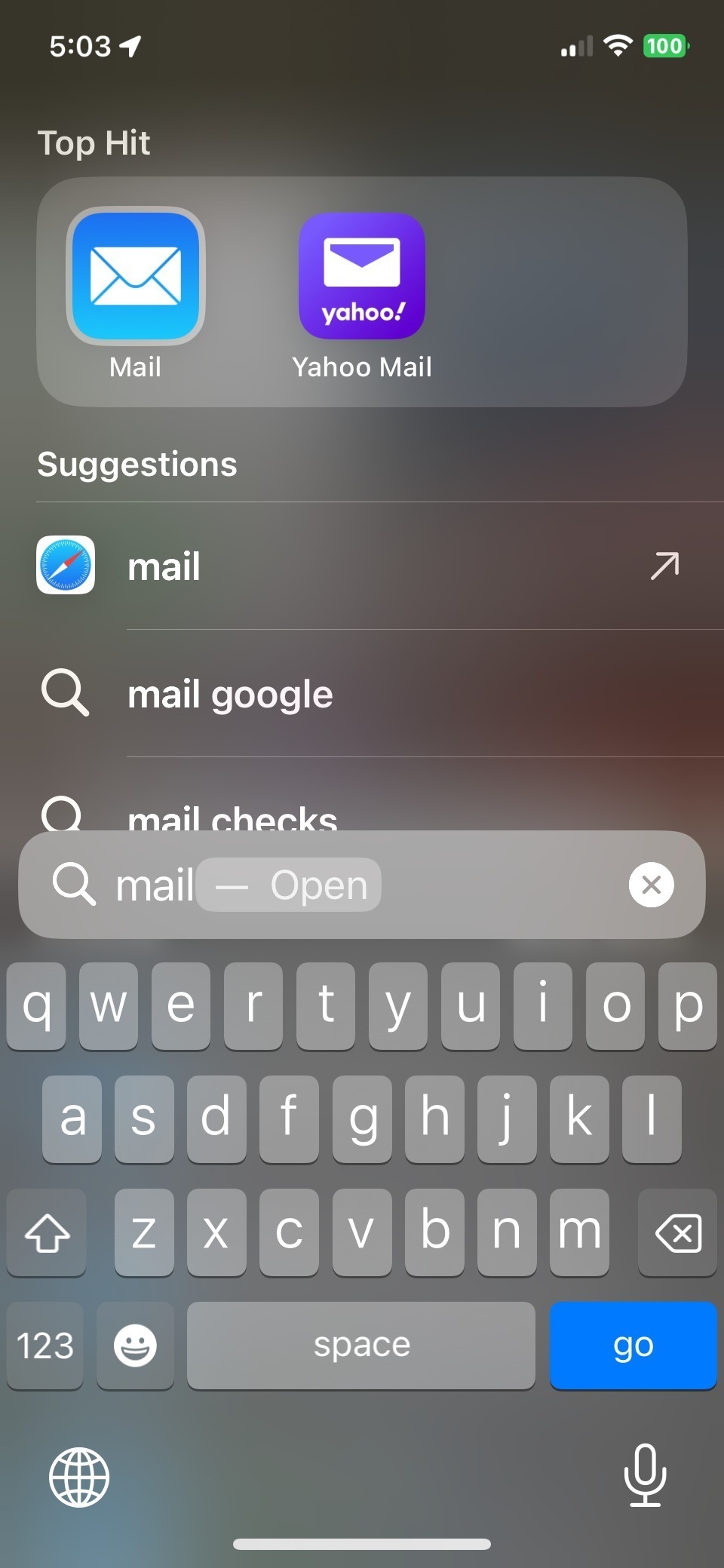
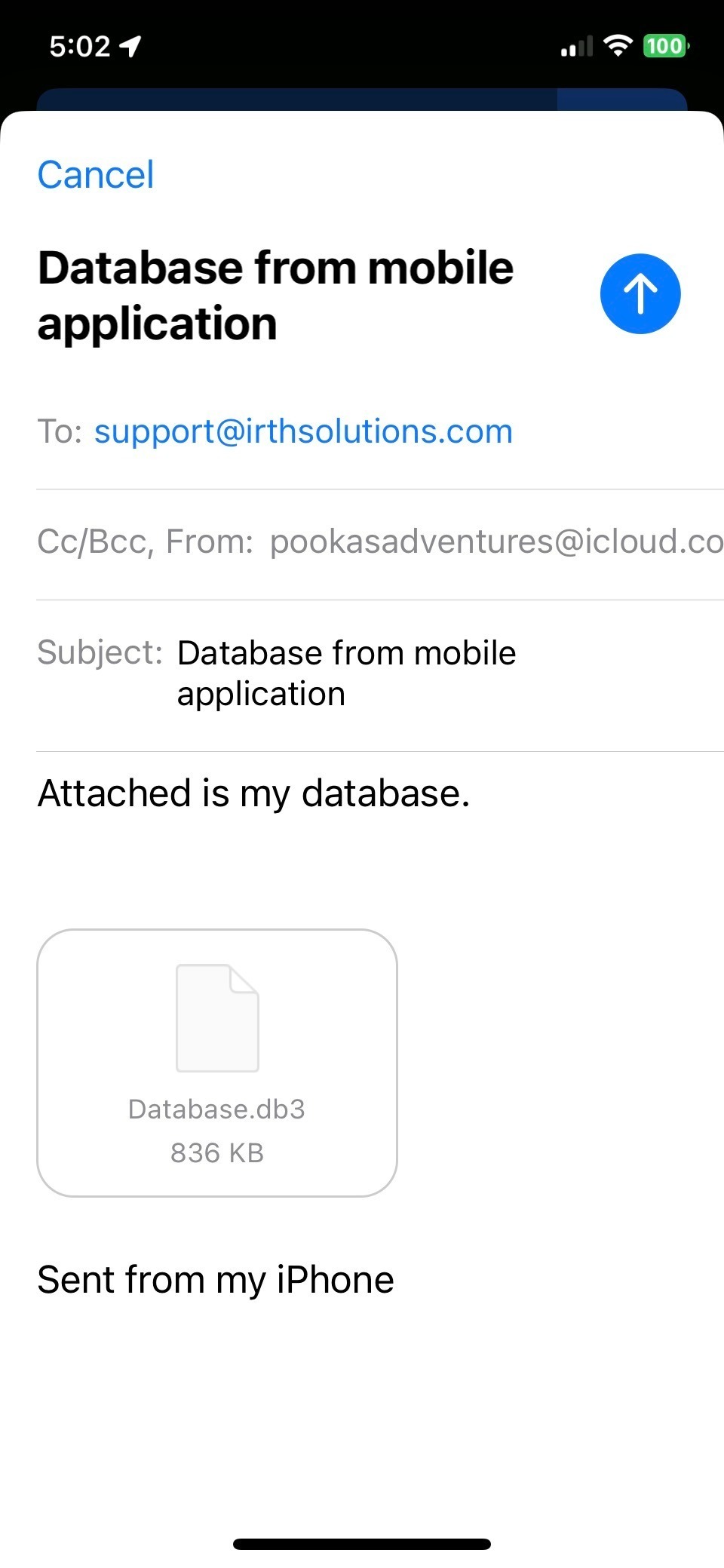
iOS Requirement: An active email account must be set up in the built‑in Mail app to send logs (DB files).
Key Benefits/Use Cases:
Fix Login Issues: When users can’t log in or see outdated information, clearing cache often resolves the problem immediately.
Refresh Training or System Data: Ensures your device loads the latest updates and system settings.
Improve Performance: Clearing cached files can speed up slow-loading pages and reduce app glitches.
How It Works:
Follow these steps to clear cache:
For PC or Mobile Web
Mobile App (Android & iOS)
NOTE: This will delete any unsaved data. Ensure photos and attachments are backed up.
Prod Users – Reset Login State
- Log out of the current account.
- Log in using:
- User:
clear - Password:
Test1234
- User:
- Log out again, then log back into your original account.
CL Users
- User:
clclear - Password:
Test1234
Sending Your Database (DB) to Support
If you continue to experience issues after clearing the cache, send your DB.
Android
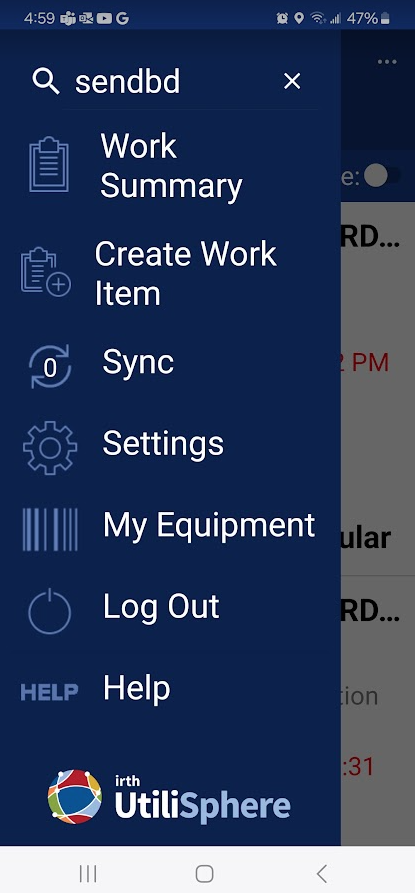
- Open the app and type senddb in the search bar.
- No confirmation appears, but the DB will be sent to support@irthsolutions.com.
 |  |
iOS
- Must have an active email set up in the Mail app.
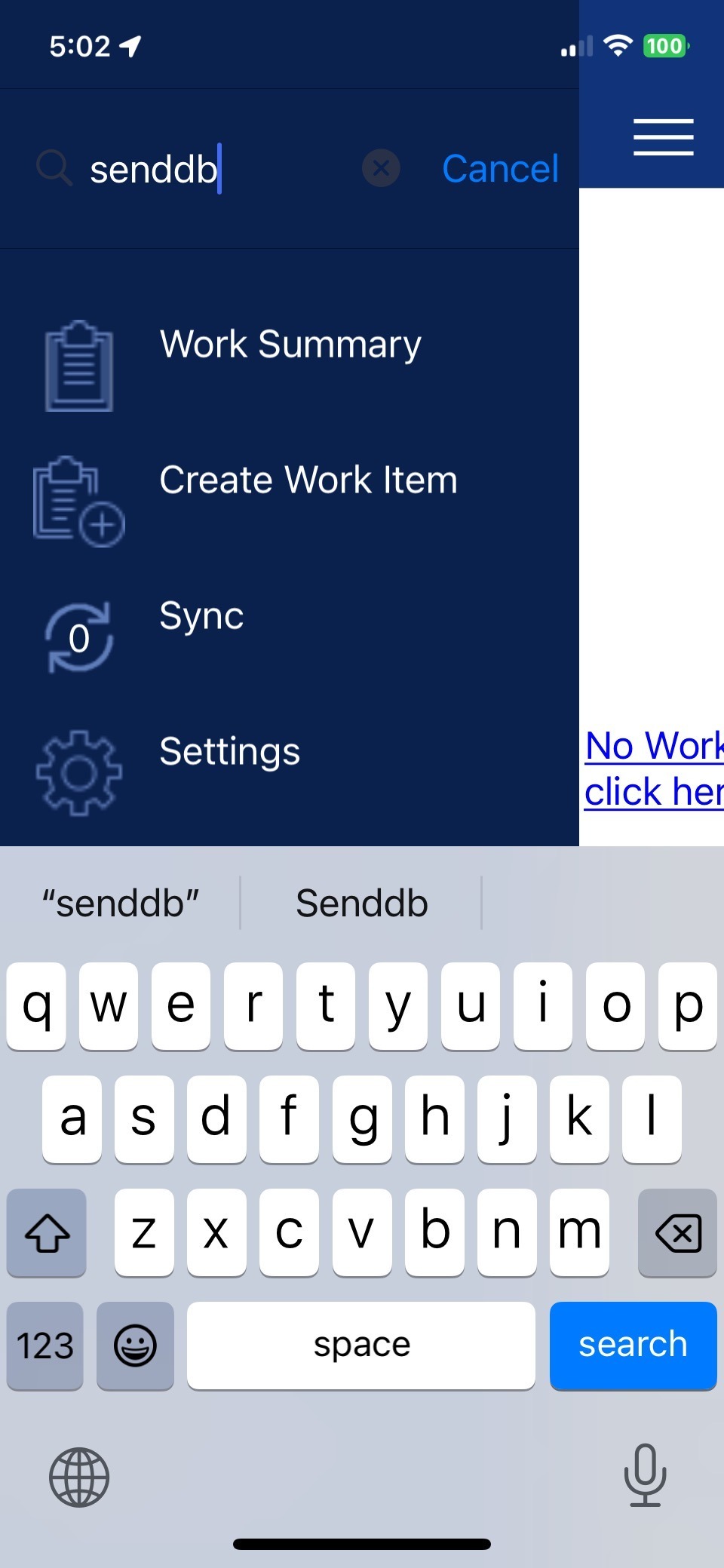
- Use the search bar and type senddb to send the DB.
 |  |
Manual Trigger (Some Devices)
- The MailDB command may auto‑send your DB to support.
FAQ/Troubleshooting:
Q: Why do I still see outdated information after clearing cache?
A: Try closing and reopening the browser or app. If issues continue, send your DB to Support.
Q: Why won’t DB send work on my iPhone?
A: Ensure the Mail app has an active email account set up.
Questions? Contact us!

Note
Was this article helpful?
That’s Great!
Thank you for your feedback
Sorry! We couldn't be helpful
Thank you for your feedback
Feedback sent
We appreciate your effort and will try to fix the article