Irth Mobile Routing Optimization
Click here to watch a Routing Optimization overview video.
Purpose/Overview
In this article, you will learn how to use Routing Optimization in Irth Mobile to organize selected tasks into an efficient route and open turn-by-turn directions using your device’s navigation application.
Routing Optimization is intended for individual field technicians who work multiple tasks at different locations throughout the day. Instead of manually determining the order in which to visit each location, users can select their tasks and allow Irth Mobile to recommend an optimized route. The route is organized using the user’s current location and task priority, with emergency tasks prioritized ahead of other work.
By reducing the need for manual route planning, Routing Optimization can help organizations improve resource utilization, complete work more efficiently, and reduce unnecessary driving, fuel consumption, vehicle wear, and labor costs.
Navigation Path:
To access this feature: Irth Mobile > Tasks > Select Tasks > Get Route
Note: The exact appearance of navigation options may vary based on the Irth Mobile version installed on your device. |
Things to Know:
- Routing Optimization is designed for individual field technicians who select the tasks they want included in their route. It is different from Fleet or Dynamic Routing, which is used to automate and manage routes across multiple field users.
- Your organization must have access to the Routing Optimization feature. Contact your administrator or Irth representative if the option is not available.
- By default, the initial route displays tasks in the order in which they were selected. Selecting Optimize Route reorganizes the selected tasks.
- The optimized route is based on the user’s current location and task priority. Emergency tasks are prioritized ahead of other task types.
- Selecting Get Directions opens the default navigation application configured on the mobile device.
- Location services may need to be enabled on the mobile device so that Irth Mobile can use the user’s current location when optimizing the route.
- A data connection may be required to generate the optimized route and open directions in the device’s navigation application.
- Users can open the route menu and select the option to discard a route when the route is no longer needed.
Key Benefits/Use Cases:
- Plan a field technician’s workday: Select multiple assigned tasks and arrange them into an efficient working order without manually comparing every location.
- Respond to high-priority work: Place emergency tasks ahead of other selected work while considering the technician’s current location.
- Reduce unnecessary travel: Use an optimized task order to help minimize driving time, fuel consumption, vehicle wear, and associated operational expenses.
- Open turn-by-turn navigation: Send the selected task location to the device’s default navigation application without manually entering the address.
- Improve resource utilization: Help field teams complete more work with their available resources through more efficient route planning.
How It Works:
Follow these steps to create and optimize a route:
Sign in to the Irth Mobile application on your mobile device.
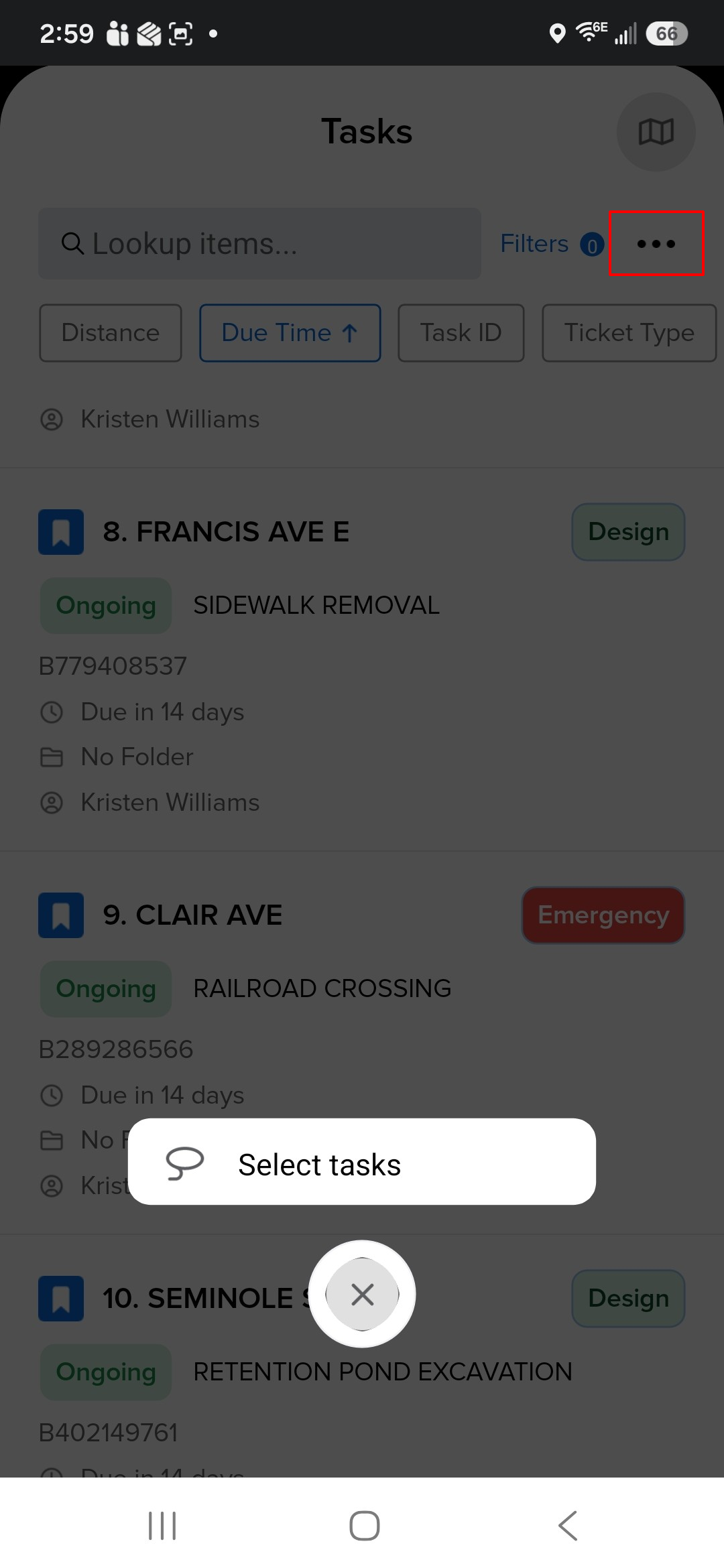
From the Tasks screen, select the More menu at the top right of the screen and tap Select Tasks to begin choosing the work you want to include in the route.
Choose each task you want to add to the route.
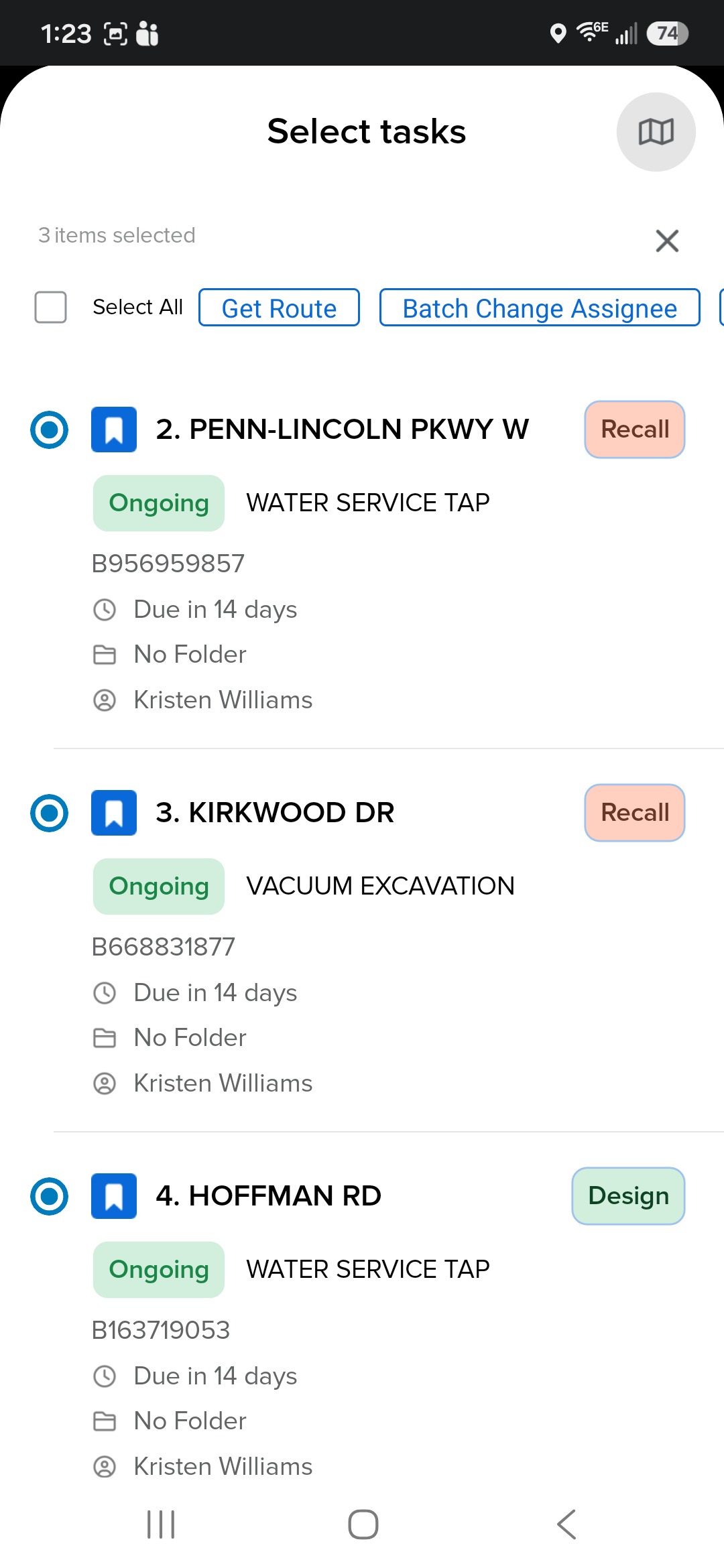
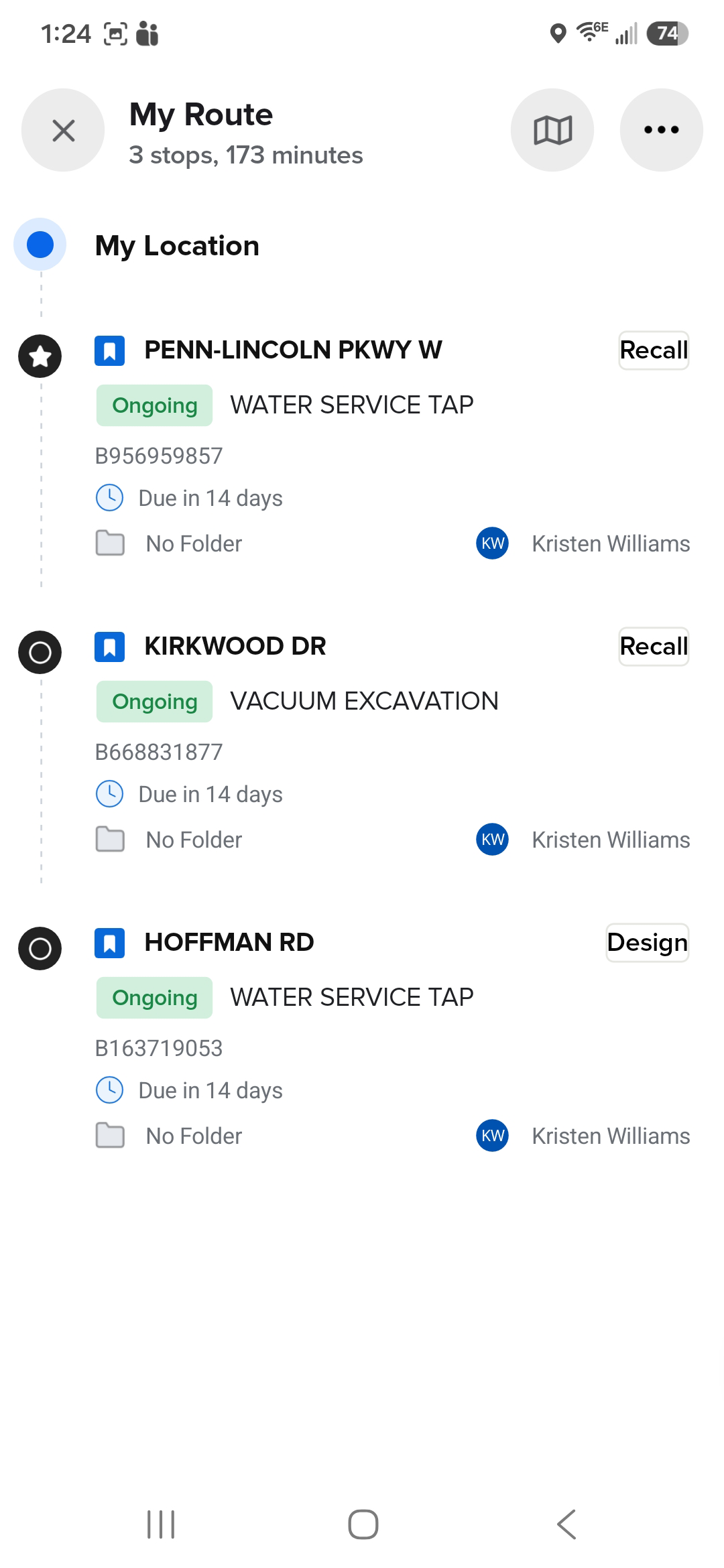
After selecting the tasks, tap Get Route at the top of the screen. The initial route displays the tasks in the order in which they were selected.
Select the ellipsis or route menu to view the available route actions.
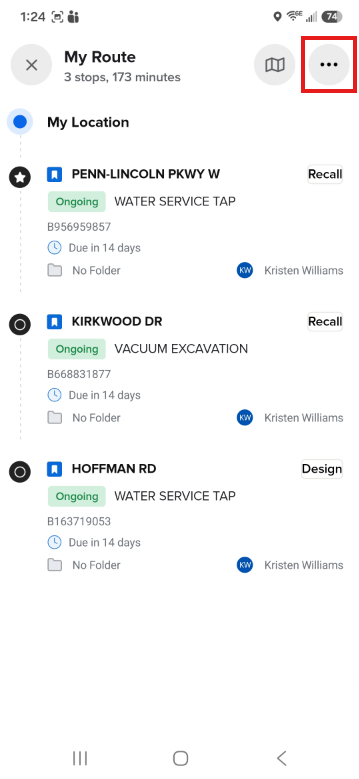
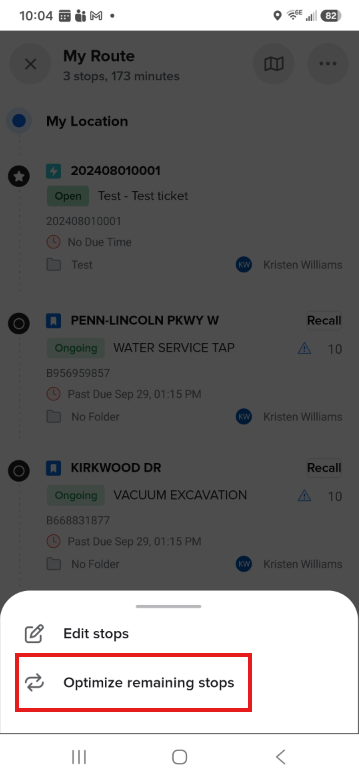
Select Optimize remaining stops. Irth Mobile reorganizes the selected tasks based on the user’s current location and task priority. Emergency tasks are prioritized ahead of other work.
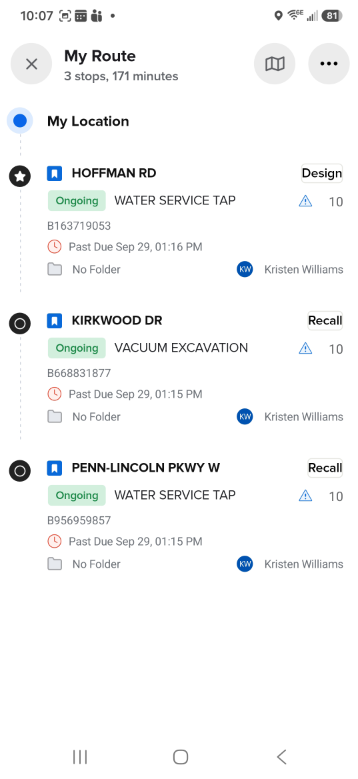
Review the newly organized task order before beginning the route.
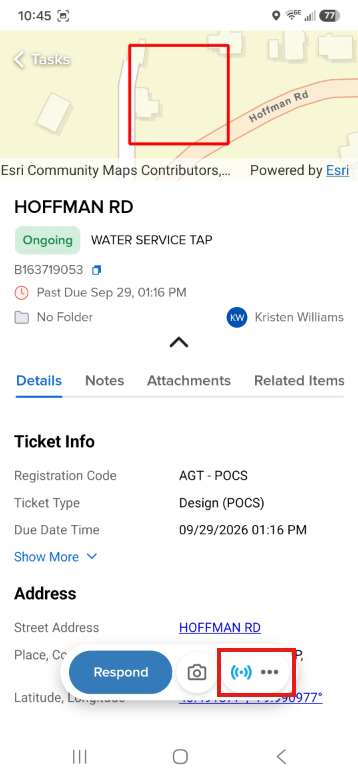
Choose the task you want to visit and tap the More menu in the Actions bar.
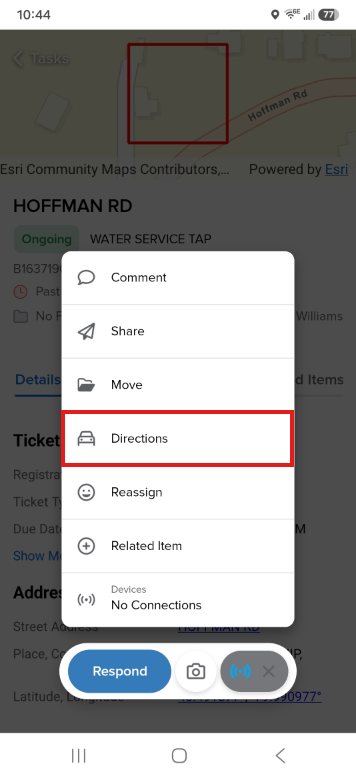
Select Get Directions to open the task’s location in the default navigation application on your device.
After completing a task, return to Irth Mobile and continue with the next task in the optimized route.
Related Features/Next Steps:
- Irth Mobile Routing Optimization (Irth Training)
FAQ/Troubleshooting:
Q: Why don’t I see the Optimize Route option?
A: Confirm that your organization has access to the Routing Optimization feature and that you have selected tasks and generated an initial route. If the option remains unavailable, contact your administrator or Irth representative.
Q: Why is the initial route not optimized?
A: When you select Get Route, the initial route displays tasks in the order in which you selected them. Open the route menu and select Optimize Route to reorganize the tasks.
Q: How does Irth Mobile determine the optimized task order?
A: The optimized route considers the user’s current location and task priority. Emergency tasks are prioritized ahead of other types of work.
Q: Does Irth Mobile provide turn-by-turn directions?
A: Selecting Get Directions redirects you to the default navigation application configured on your mobile device. The navigation application then provides the available directions.
Q: Can I remove a route that I no longer need?
A: Yes. Open the route menu by selecting the ellipsis, and then select the option to discard the route.
Q: Is Routing Optimization the same as Fleet or Dynamic Routing?
A: No. Routing Optimization is intended for individual technicians who manually select tasks and then optimize their driving order. Fleet or Dynamic Routing is intended to automate ticket distribution and route planning across multiple field users.
Q: Why did an emergency task appear before my other tasks?
A: Routing Optimization prioritizes emergency tasks ahead of other task types when generating the optimized route.
Q: If I have multiple emergency tickets, which one takes priority?
A: The app selects the emergency ticket that best fits the most efficient overall route. This means you may be directed to a ticket that is not the closest to your current location.
Questions? Contact us!

Was this article helpful?
That’s Great!
Thank you for your feedback
Sorry! We couldn't be helpful
Thank you for your feedback
Feedback sent
We appreciate your effort and will try to fix the article