Irth Mobile: Frequently Asked Questions
Purpose/Overview
Use the links throughout this article to access additional resources and more detailed instructions.
TABLE OF CONTENTS
- Getting Started & Device Requirements
- Login & Account Access
- Tasks & Tickets
- Search, Filters & Sorting
- Maps & Navigation
- Photos & Attachments
- Syncing, Offline Work & Outbox
- Settings & Permissions
- Troubleshooting & Support
- Upcoming Features & Feedback
FAQ/Troubleshooting:
Getting Started & Device Requirements
Q: How do I download the Irth Mobile App?
A: Download the app from the Apple App Store or Google Play. See Downloading and Logging In to the Irth Utilisphere Mobile App for instructions and system requirements.
Q: Who is the app designed for?
A: The Irth Mobile App is designed for utility locators to efficiently manage field operations.
Q: Which iOS versions are supported?
A: Irth Mobile supports the three most recent versions of iOS. If your device uses an older version, you may need to update iOS.
Q: Does the iPad app work in portrait mode?
A: Not yet. The iPad app currently runs in landscape mode. Portrait mode is planned for a future update.
Q: Is there a cost to use the app?
A: No. Both the new and classic apps are included with subscriptions.
Q: Can I access both the old and new apps during the transition?
A: Yes. Both apps are currently supported, and documentation is available for each.
Login & Account Access
Q: How do I log in to the Irth Mobile App?
A: Your available login method depends on your organization's configuration. See Downloading and Logging In to the Irth Utilisphere Mobile App.
Q: Does the app support Single Sign-On (SSO)?
A: Yes. SSO is supported, and token expiration is based on your organization's settings.
Q: How do I create or reset a user account?
A: Administrators create accounts in Utilisphere and assign mobile profiles. Users can reset their password from the app's login screen.
Q: Do I need to log out when I'm finished using the app?
A: No. Unless your organization uses SSO, you'll remain logged in unless your permissions change. To manually log out, go to Settings and select Log Out.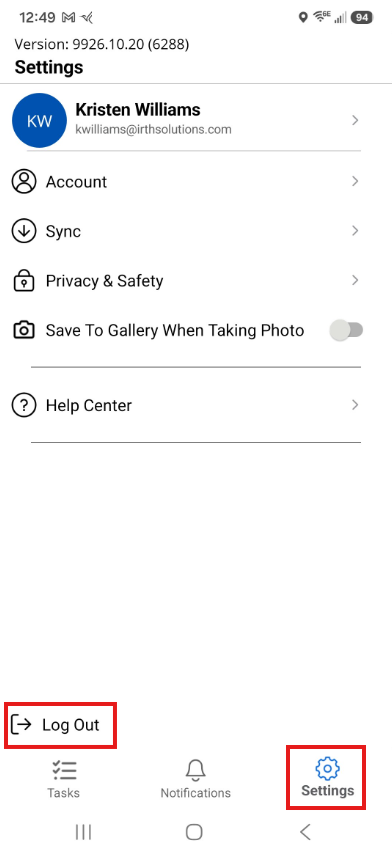
Q: Can I use the web platform while I'm logged in to the mobile app?
A: Yes. You can work in multiple apps and user interfaces at the same time.
Q: What if my company has firewall restrictions?
A: Ask your IT team to whitelist IP address 64.128.112.130.
Tasks & Tickets
Q: How do I know if an item is a ticket or work item?
A: Check the icon associated with the item:
|  | Bookmark icon |
|  | Lightning bolt icon |
Q: Can I edit a work item after submitting it?
A: Yes. Open the work item, select the ellipsis (...), and choose Modify Work Item.
Q: Can I batch process tickets?
A: Yes. From the ellipsis (...) menu in the task list, you can select tasks, change assignees or folders, respond, add notes, or get a route.
Q: Can I distinguish ongoing tickets from open tickets without responses?
A: Not currently. Ongoing tickets and open tickets without responses appear the same in the app.
Q: Can I access attachments from the original ticket?
A: Yes. Open the Related Items tab in your task, select the related ticket, and then open Attachments.
Search, Filters & Sorting
Q: How are tasks sorted?
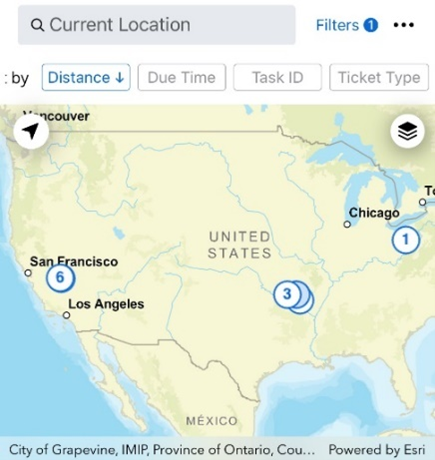
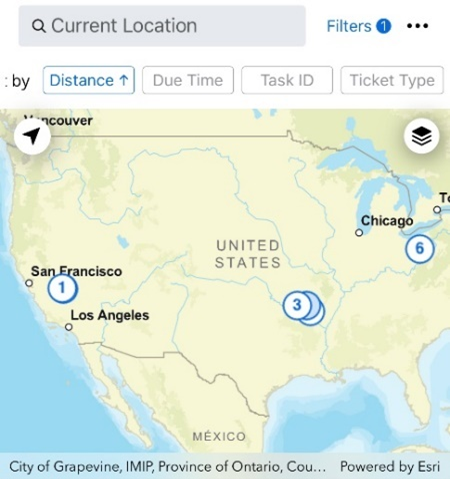
A: Tasks can be sorted using criteria such as distance, due time, task ID, or ticket type. Tap the same sort option again to switch between ascending and descending order.
 |  |
Q: Can I search for an item?
A: Yes. When the search bar displays Current Location, you can search using information such as an address or item number.
Q: Will my filters stay applied between sessions?
A: Yes. Your selected filters persist between sessions.
Q: How do I view tasks I closed today?
A: Use the Closed filter. Closed tasks remain available until the next workday.
Q: What does the Closed filter show?
A: The Closed filter shows tasks that you personally closed. Tasks closed by other users do not appear under this filter.
You can still find tasks closed by another user through search if the task was closed that day and you have the appropriate folder visibility permissions.
Maps & Navigation
Q: Can I change the map view?
A: Yes. Use the map layer picker in the upper-right corner to switch between available map layers, including Street, Satellite, Hybrid, and default layers.
Q: Why aren't my custom map layers showing?
A: Make sure the layers are enabled for mobile devices. Your IT team should also confirm that the mobile IP is whitelisted in applicable security tools.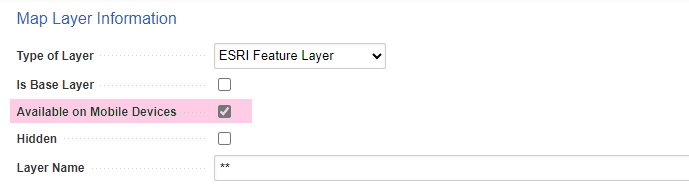
Q: Does the mobile app have measurement tools like the desktop version?
A: Not currently. Measurement tools are being evaluated for mobile use based on user feedback.
Photos & Attachments
Q: Can I take or upload photos?
A: Yes. Depending on your mobile profile settings, you can take photos using the in-app camera or upload photos from your gallery. Multiple-photo uploads are supported.
Q: Do photos include GPS information?
A: Photos taken directly through the app with your device camera include GPS information. The information isn't visible in the mobile app but can be viewed in the web platform.
Q: Can photos automatically be saved to my device's gallery?
A: Not currently. You can download an individual photo by opening the attachment, selecting the ellipsis (...), and choosing Download.
You can also vote for this enhancement in the Feedback Forum.
Q: Can I upload videos?
A: Not currently. Video upload is being considered for a future update.
Syncing, Offline Work & Outbox
Q: How does syncing work?
A: Auto-sync runs every 2–4 minutes. You can also manually sync from Settings. Items that cannot upload while you're outside a coverage area appear in the Outbox.
Q: Can I turn off auto-sync?
A: No. Auto-sync helps ensure updated information, including emergency and compliance-related information, is received promptly.
Q: Will tickets I close offline sync when I reconnect?
A: Yes. Data collected while offline, including timestamps and GPS information, syncs after you regain coverage.
Q: Why are photos or responses stuck in my Outbox?
A: Pending uploads currently process when the app is open and your device is online. If you worked offline, keep or reopen the app after reconnecting so pending items can upload.
Items that don't upload remain in the Outbox so they can be reviewed and retried.
Settings & Permissions
Q: How is folder visibility determined?
A: Folder visibility is based on your mobile profile settings.
- All Personnel folders: Available when the folder is assigned to All Personnel and the user's mobile profile includes assigned user folders.
- Specific folders: Folders selected directly in a mobile profile are available to users associated with that profile.
If a folder isn't appearing, review the user's mobile profile settings.
Q: Are there security measures to protect my data and privacy?
A: Yes. For more information, review the Irth Statement of Privacy.
Troubleshooting & Support
Q: I logged in and my Home screen is gone. What happened?
A: This is expected. The Home screen was removed beginning with app version 26.1.3.
Q: How can I get help or share feedback?
A: Visit the Feedback Forum in the Support Portal or open the Help Center under Settings in the app.
Q: Where can I find additional mobile help?
A: Visit the Mobile App Knowledge Base for additional Irth Mobile documentation.
Upcoming Features & Feedback
Q: Will chat support communication between excavators and locators?
A: The planned chat functionality is intended to support both internal and excavator-locator communication linked to tickets.
Q: Will photos be able to automatically save to my gallery?
A: Not currently. You can vote for this feature in the Feedback Forum.
Q: Will video uploads be supported?
A: Video upload is being considered for a future update.
Q: Will training information be sent to field teams?
A: Irth distributes newsletters and other information by email, based on users' subscription preferences. Knowledge Base articles and Irth Training modules can also be shared with field teams.
Q: How can I suggest improvements to the app?
A: Submit or vote for ideas in the Feedback Forum.
Questions? Contact us!

Was this article helpful?
That’s Great!
Thank you for your feedback
Sorry! We couldn't be helpful
Thank you for your feedback
Feedback sent
We appreciate your effort and will try to fix the article