Adding Quizzes/Surveys to a Credential
Purpose/Overview
In this article, you’ll learn how to enhance your Credential training by adding Quizzes and Surveys. Quizzes help verify learner understanding before they progress, while surveys capture valuable feedback on the effectiveness of your content. Together, these tools create a more engaging learning experience and provide data‑driven insights to continuously improve your training.
Navigation Path:
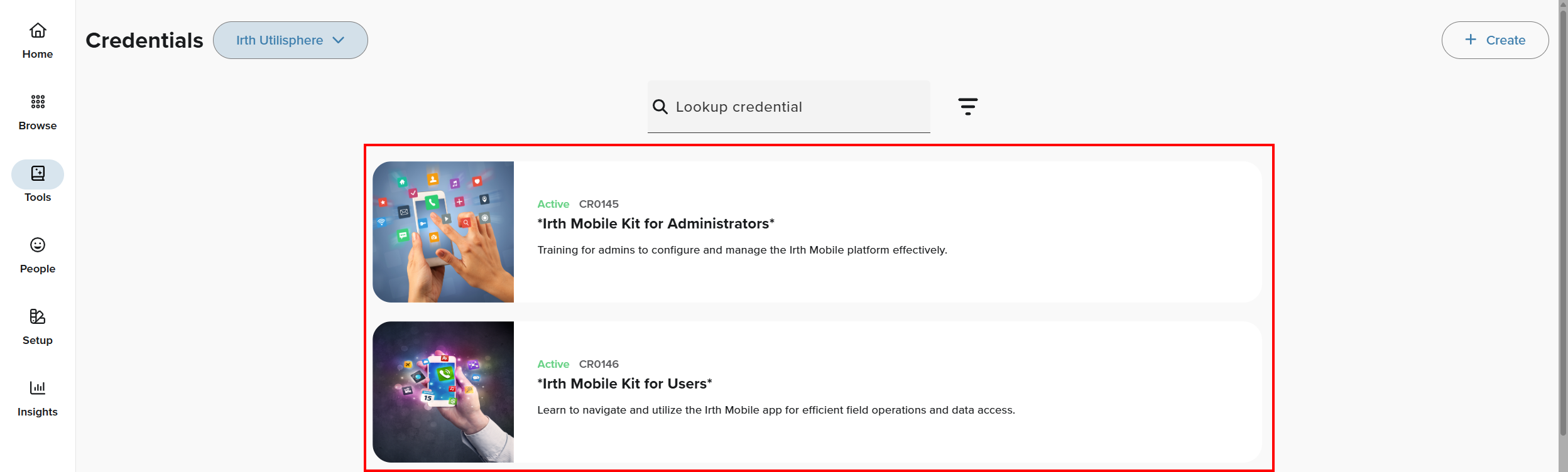
To access and edit a credential, go to: Irth Training > Main Menu > Tools > Credentials
Key Benefits/Use Cases:
- Measure learning outcomes: Confirm that training objectives are being met by identifying which concepts learners understand, and where they may need additional support.
- Increase retention: Quizzes reinforce learning through active recall, helping learners retain information more effectively.
- Gather learner sentiment: Surveys give learners a voice, allowing you to understand what worked well, what didn’t, and where improvements can be made.
Things to Know:
- If you delete a Quiz or Survey from a Credential, all associated learner results are permanently lost.
- When you update a Quiz or Survey and set the new version to Active, the Credential does not automatically update. You can manually add/remove Quiz or Survey versions by editing the Credential design as needed.
How to Add a Quiz or Survey to a Credential:
Open the Credential
- Select the credential you want to update.
- Go to the Design tab.

- Click +Add Step button at the bottom of the screen.

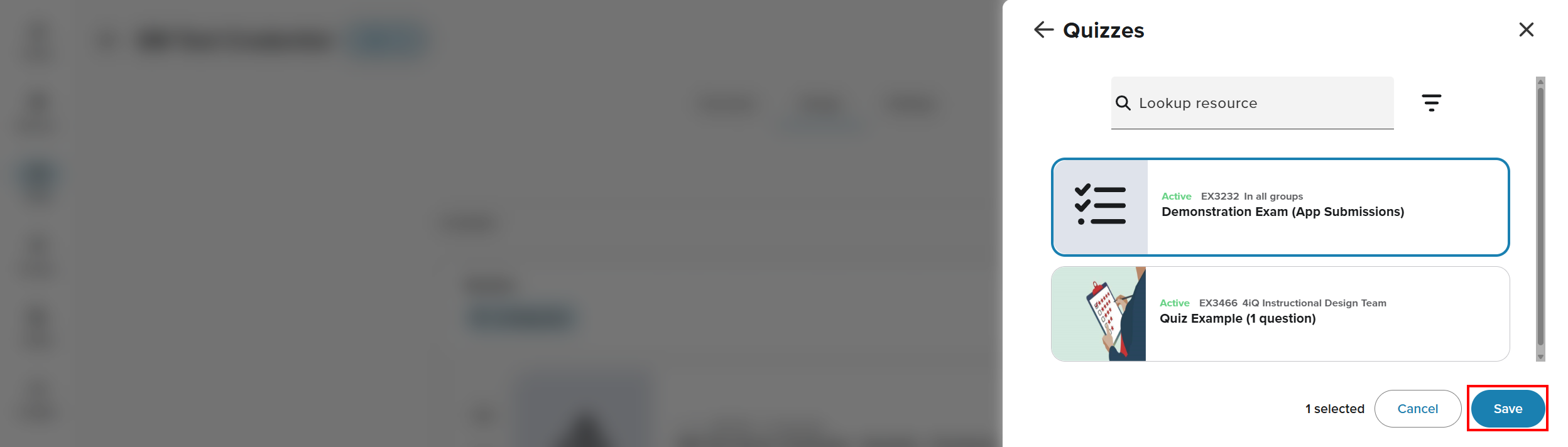
- From the Add Step side panel, select either Quiz or Survey.

- Choose an item from your list of Active quizzes or surveys, then click Save.
 NOTE: Quizzes and surveys in Draft status will not appear in the list. If you don’t see your item, navigate to Main Menu > Tools > Quizzes/Surveys and confirm it is set to Active.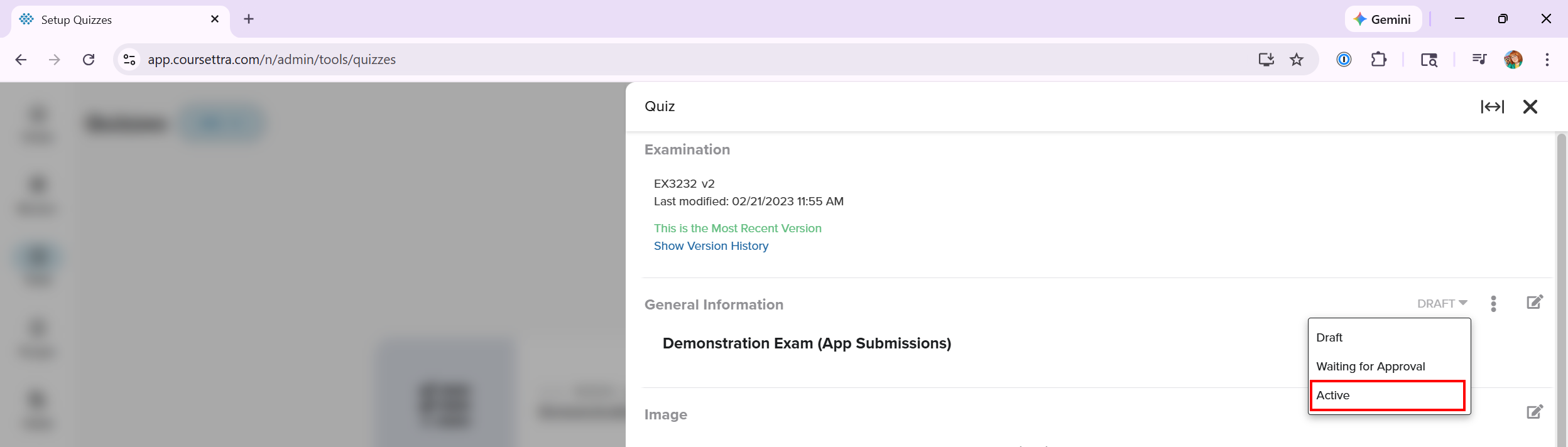
- Once added, select each of the three option chips beneath the Quiz or Survey to configure:

- Minimum Score to Pass
- Next Step if Passed: (Example: move to the next item or complete the credential)
- Next Step if Failed: (Example: retry the quiz until passed, repeat the entire section, then attempt the quiz again)
Related Features/Next Steps
- Learn how to create and manage Quizzes and Surveys: Click Here!
- Learn how to manage other aspects of a Credential: Click Here!
FAQ/Troubleshooting:
Q: I don’t see my quiz or survey in the list when adding it to a credential. What’s wrong?
A: Only quizzes and surveys in the Active state can be added to a Credential. Navigate to Main Menu > Tools > Quizzes/Surveys, locate your item, and confirm its status is set to Active.
Questions? Contact us!

Was this article helpful?
That’s Great!
Thank you for your feedback
Sorry! We couldn't be helpful
Thank you for your feedback
Feedback sent
We appreciate your effort and will try to fix the article