Copilot Dev Card Creation Setup Guide
Purpose:
This guide is designed to streamline the process of creating development templates for Support cases. It aims to save time and ensure consistency when triaging cases to the development team.
Initial Setup Using Copilot
Launch the Dev Template Creation Prompt
Click the following link to open the prefilled prompt in the M365 Copilot app:
Dev Template Creation
Run the Prompt
Execute the prompt for the initial setup.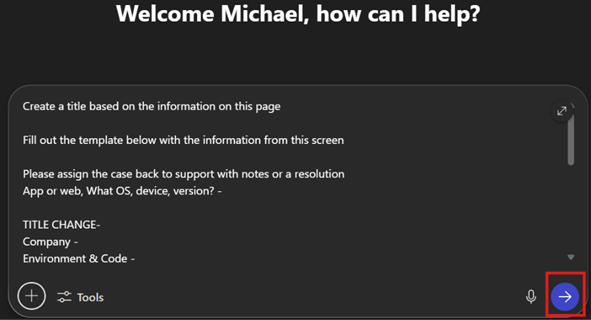
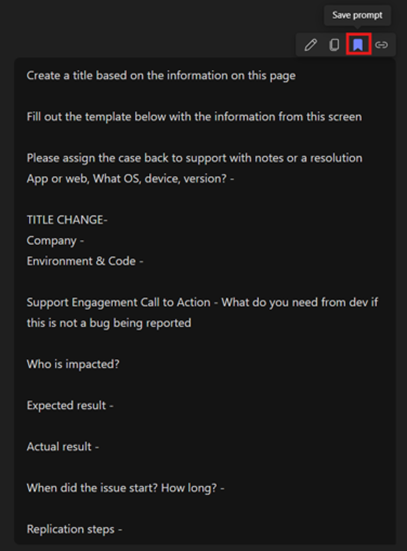
Save the Prompt
After execution, click “Save” to store the prompt for future use.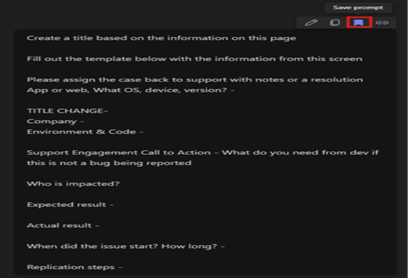
Accessing the Prompt via Microsoft Edge
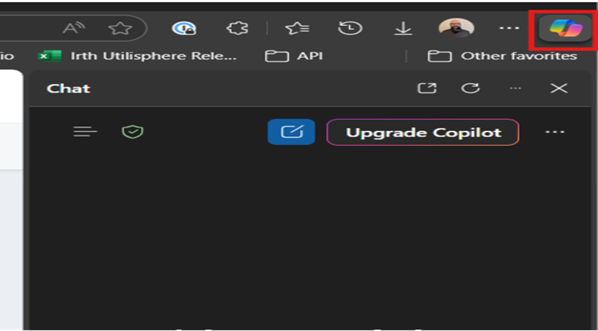
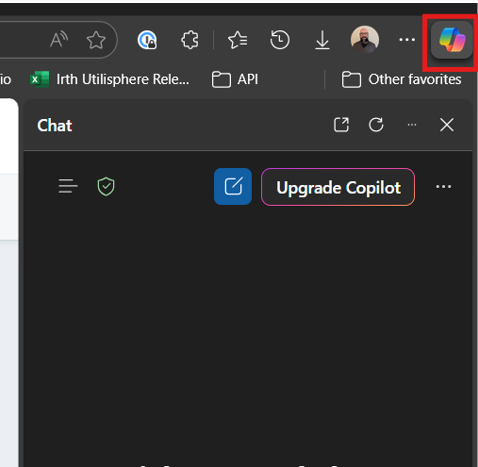
Open Microsoft Edge and access the integrated Copilot panel (top-right corner).
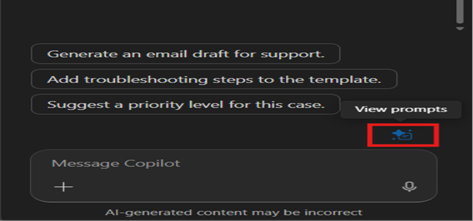
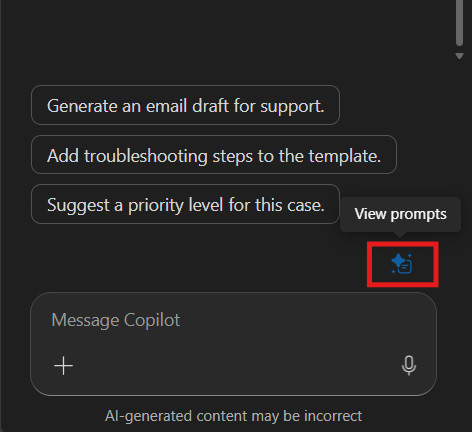
Click “View Prompts” above the message box.
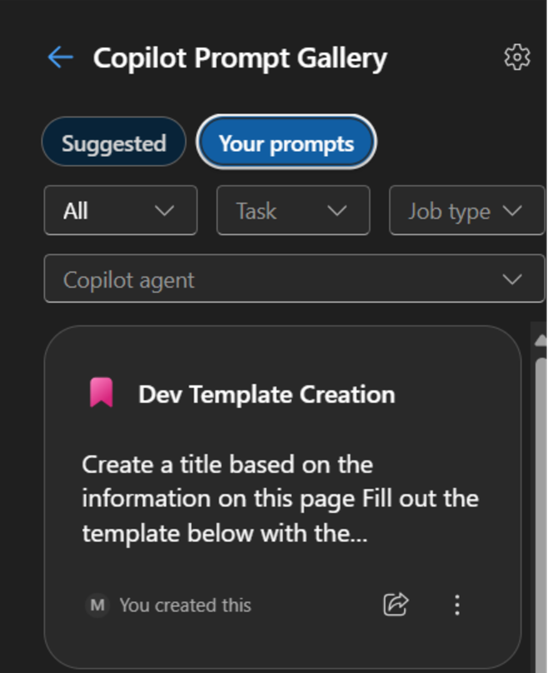
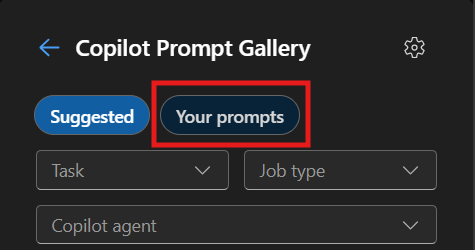
Select “Your Prompts”.
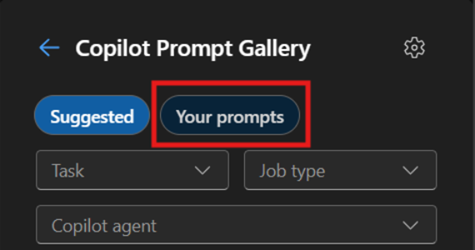
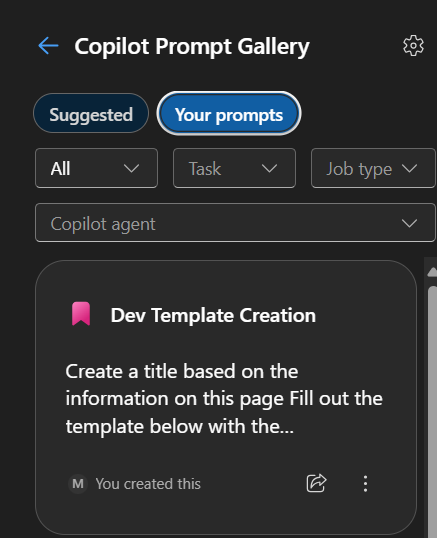
Choose the Dev Template Creation prompt.
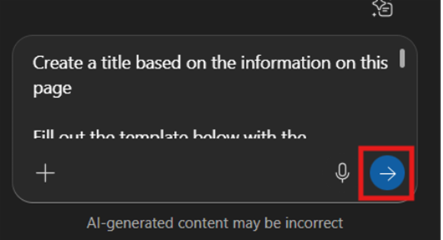
Using the Prompt to Create a Dev Card
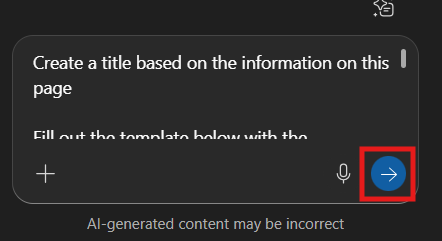
Run the prompt to generate the development template using case information from Freshdesk automatically.
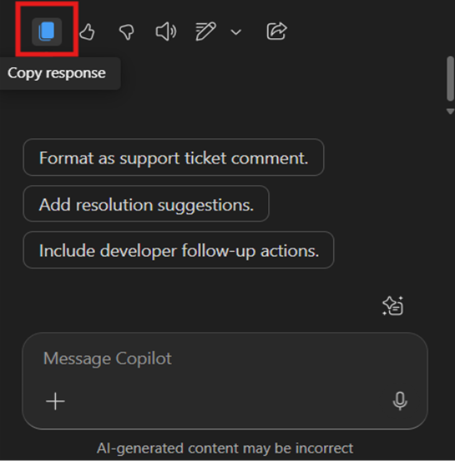
Copy the generated response.
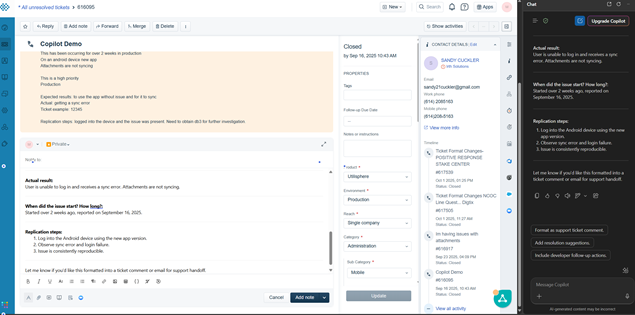
Paste the response into the Notes section of the case.
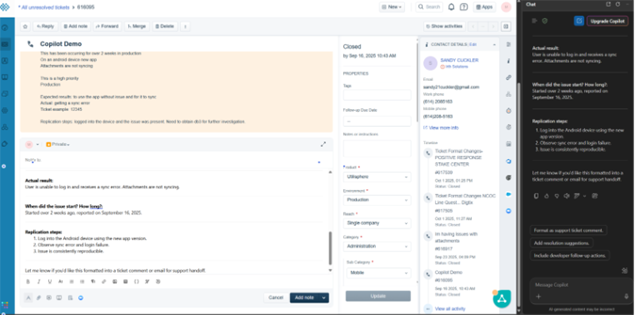
Update the Title appropriately.
Verify the accuracy of the information.
Include relevant screenshots as needed.
Once complete, follow the standard process to create the Dev Card.
Visual Guide
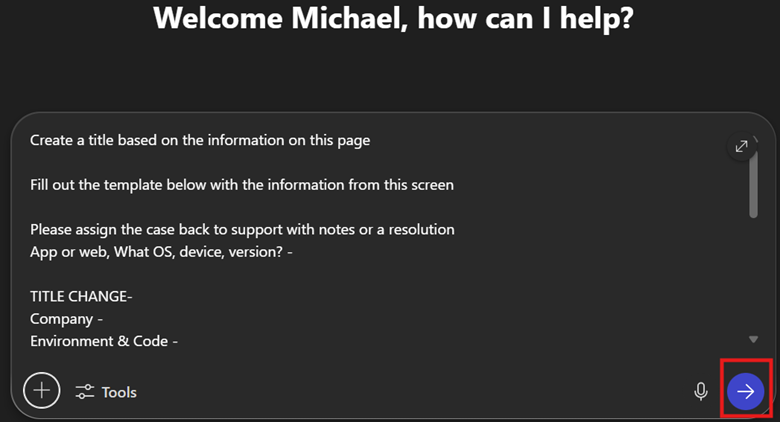
Run the initial prompt.
Save the prompt.
Open Copilot in Edge.
View saved prompt(s).
Select “Your Prompts”.
Select the Dev Template Creation prompt.
Run the prompt.
Copy response.
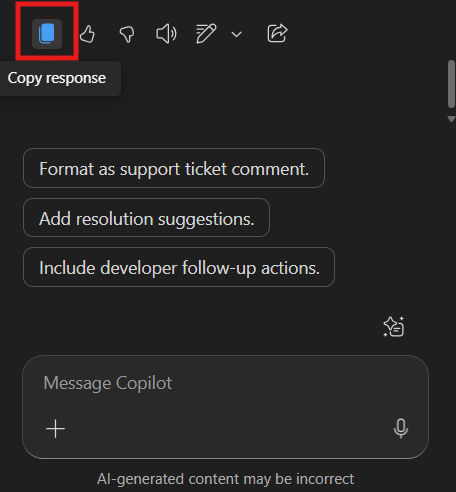
Copy the response to the Note section of Fresh Desk
Questions? Contact us!

Was this article helpful?
That’s Great!
Thank you for your feedback
Sorry! We couldn't be helpful
Thank you for your feedback
Feedback sent
We appreciate your effort and will try to fix the article