Using Process Automation to Create Ticket a Certain Number Follow-ups on a Daily Basis
Purpose/Overview
In this article, you will learn how to configure a Process Automation rule that automatically generates a specified number of forms on a scheduled basis using Insights AI risk scores.
This feature enables administrators to automate the creation of work item forms, such as Damage Prevention Inspection (DPI) Locate Audits, Excavator Consultations, Field Meets, and other follow-up activities based on prioritization criteria and configurable generation limits. Administrators can define how many forms should be created each day and schedule when the automation rule runs, eliminating the need for manual review and bulk form creation.
The feature also supports configurable Generation Order options, allowing administrators to control which eligible records are processed first when a Form Generation Limit is in place..
Navigation Path:
To access this feature: Utilisphere > System Management > Administration > Work Management > Process Automation
The Form Generation Limit and scheduling options are configured within the Process Automation rule.
Things to Know:
- Process Automation rules can be configured to automatically generate a fixed number of forms each day.
- The maximum number of forms generated is controlled by the Form Generation Limit setting.
- Administrators can configure the time that the automation rule runs.
- The Process Automation Batch Processing With Generation Limits system toggle must be enabled before generation limit options become available.
- Once the toggle is enabled, administrators can use the generation limit option when configuring a Create New Work Item action.
- The automation rule evaluates eligible tickets that have been created or updated since the last completed batch run.
- Changes made to the Form Generation Limit before the scheduled run time take effect on the same day.
- Changes made after the scheduled run time take effect on the next scheduled run.
- Risk scores can be based on one or more available Insights AI scoring models.
- The functionality can be used with both existing and future work items.
- The automation rule only triggers on configured ticket responses.
- Proximity information entered by locators is factored into the risk score calculation before form creation occurs.
- When a generation limit is used, administrators can define how eligible records are prioritized using the Generation Order setting.
- Generation Order uses the value of the selected triggering field and supports Ascending, Descending, and None (Random) options.
- The selected Generation Order determines which eligible records are processed first until the configured Form Generation Limit is reached.
Key Benefits/Use Cases:
- Automate High-Risk Ticket Reviews: Automatically generate forms for the highest-risk tickets without requiring manual sorting and bulk form creation.
- Control Daily Workload: Adjust the number of forms created each day to align with available staffing, business priorities, or operational needs.
- Prioritize Risk-Based Activities: Use Insights AI risk scores or other triggering field values to ensure the highest-priority tickets receive attention first.
- Increase Processing Flexibility: Configure how records are prioritized by selecting Ascending, Descending, or Random processing behavior.
How It Works:
Administrators can configure a Process Automation rule to automatically generate work items based on ticket risk scores and other qualifying criteria. The rule evaluates eligible tickets that have been created or updated since the last completed batch run and creates forms until the specified generation limit has been reached.
When a generation limit is enabled, administrators can configure a Generation Order setting that determines how eligible records are prioritized before forms are generated. The system uses the value of the selected triggering field and processes records according to the specified order until the configured Form Generation Limit has been reached.
Available Generation Order options include:
- Ascending – Records are processed from the lowest triggering field value to the highest.
- Descending – Records are processed from the highest triggering field value to the lowest.
- None (Random) – Records are processed without applying a sort order.
The number of forms created and the scheduled execution time can both be modified as business needs change.
- Create a new Process Automation rule or edit an existing rule.

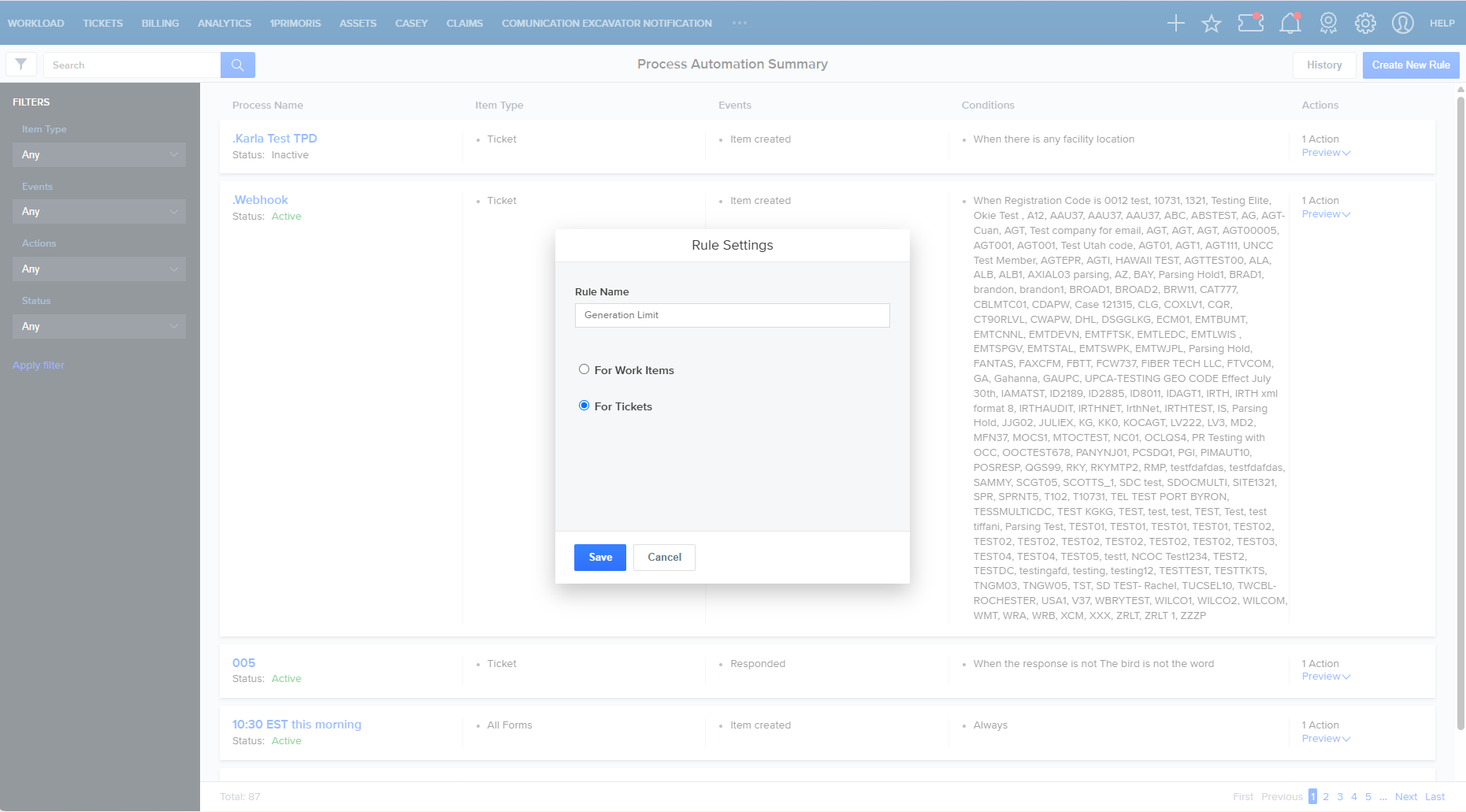
- Enter a Rule Name, select For Tickets, and Save.
- Enable the generation limit option available within the action configuration.
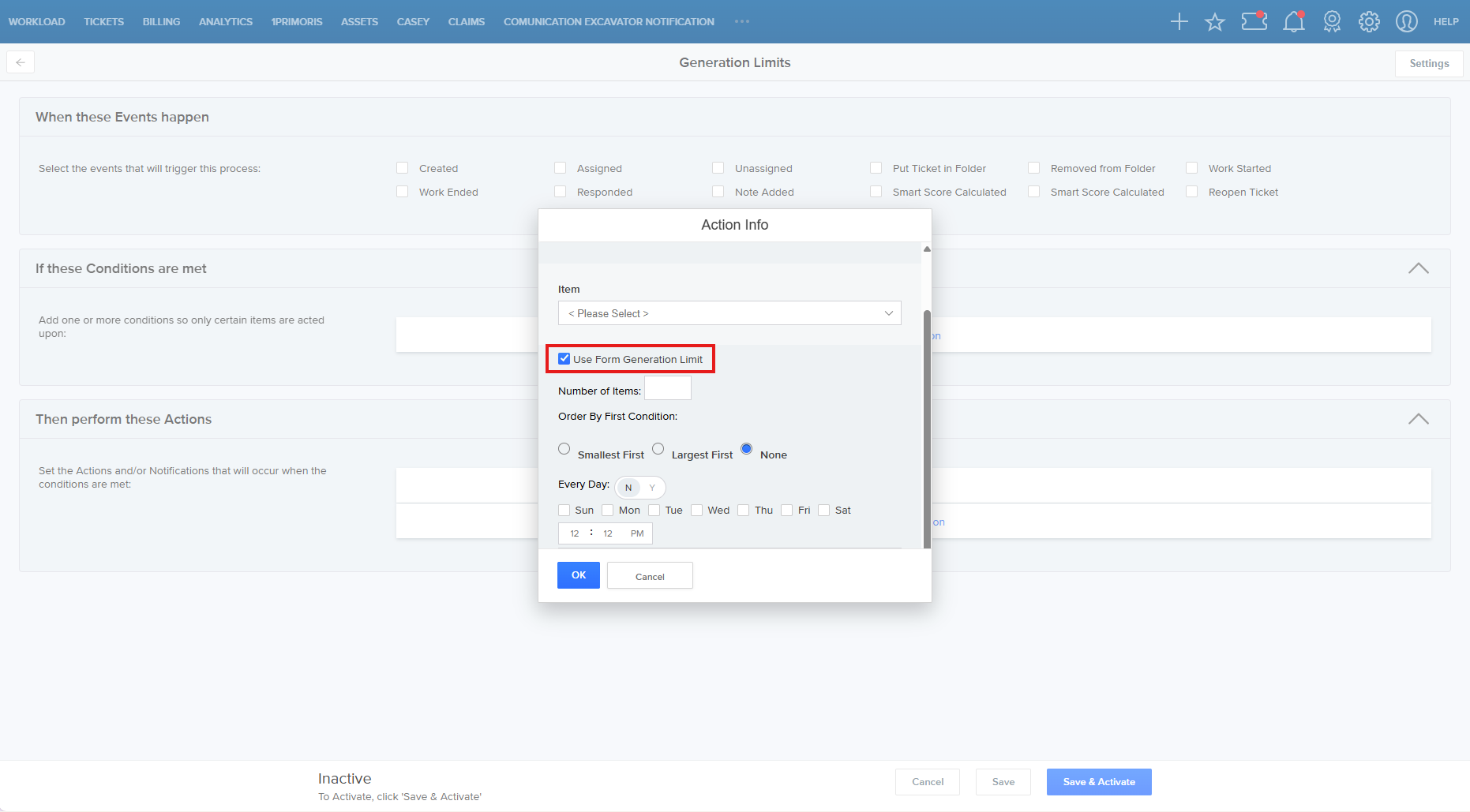
- Configure the Form Generation Limit value.
Select the triggering field that will be used to prioritize eligible records.
Configure the Generation Order setting:
- Ascending
- Descending
- None (Random)
Configure the scheduled execution time.
Save the Process Automation rule by selecting OK.
At the scheduled time, the system evaluates eligible tickets that have been created or updated since the last completed batch run.
The system sorts eligible records based on the selected triggering field and Generation Order.
Forms are automatically created until the configured Form Generation Limit is reached.
Form Generation Limit
The Form Generation Limit determines the maximum number of forms that can be created during a scheduled execution.
For example:
- If the limit is set to 50, the system creates up to 50 eligible forms during that run.
- If the limit is changed to 30 before the scheduled run time, only 30 forms are generated.
- The rule stops creating forms once the configured limit has been reached.
Generation Order
The Generation Order setting determines how eligible records are prioritized when a Form Generation Limit is configured.
Because the Form Generation Limit may prevent all eligible records from being processed during a scheduled run, Generation Order allows administrators to control which records are generated first.
Ascending
Records are processed from the lowest triggering field value to the highest triggering field value.
Example
| Ticket | Risk Score |
|---|---|
| Ticket A | 15 |
| Ticket B | 35 |
| Ticket C | 65 |
| Ticket D | 90 |
If the Form Generation Limit is set to 2, the system generates forms for:
- Ticket A (15)
- Ticket B (35)
Descending
Records are processed from the highest triggering field value to the lowest triggering field value.
Using the same example above, the system generates forms for:
- Ticket D (90)
- Ticket C (65)
None (Random)
No sorting is applied. Eligible records are processed without regard to the triggering field value.
Important
The selected Generation Order is applied before the Form Generation Limit is evaluated. The system continues generating forms in the specified order until the maximum number of allowed forms has been created.
Scheduled Execution
Administrators can define when the Process Automation rule executes each day.
For example:
- Form Generation Limit = 50
- Scheduled Run Time = 6:00 AM EST
The automation rule begins processing eligible tickets at 6:00 AM and continues generating forms until the configured limit has been reached.
Risk Score Evaluation
The automation rule can prioritize tickets using available Insights AI risk scores.
Scores may incorporate:
- Insights AI Incident Likelihood scoring
- Organization-specific historical damage data
- Proximity information entered on the ticket
- Configured risk-ranking criteria
Important Prioritization Behavior
When Generation Limits are enabled, administrators can configure how eligible records are prioritized using the Generation Order setting.
The selected triggering field is used to determine record order:
- Ascending processes the lowest values first.
- Descending processes the highest values first.
- None (Random) does not apply a sort order.
This provides greater flexibility when creating follow-up work items, audits, inspections, consultations, or other forms from a large pool of eligible tickets.
FAQ/Troubleshooting:
Q: Why don't I see the Form Generation Limit option?
A: Verify that the Process Automation Batch Processing With Generation Limits toggle is enabled. Once enabled, the generation limit option becomes available.
Q: What happens if I change the Form Generation Limit before the rule runs?
A: The new limit is applied during the next scheduled execution, provided the change is made before the scheduled run time.
Q: What happens if I change the Form Generation Limit after the rule has already run?
A: The updated limit will be applied during the next scheduled execution.
Q: Can I change the time that the automation rule runs?
A: Yes. Administrators can configure the scheduled execution time within the Process Automation rule.
Q: How does the system decide which tickets are selected first when a generation limit is used?
A: The system uses the configured Generation Order setting and the value of the selected triggering field to determine which records are processed first.
Q: What Generation Order options are available?
A: Administrators can select:
- Ascending to process the lowest values first.
- Descending to process the highest values first.
- None (Random) to process records without applying a sort order.
Q: What happens if there are more eligible records than the Form Generation Limit allows?
A: The system processes records according to the selected Generation Order and stops generating forms once the configured Form Generation Limit is reached. Remaining eligible records can be evaluated during future scheduled executions.
Q: Is an AI Risk Score still recommended?
A: Yes. While any supported triggering field can be used, numeric values such as AI Risk Scores are often the most effective for ranking and prioritizing records when using Generation Limits.
Questions? Contact us!

Locate Audits", "Excavator Consultations", "Field Meets", etc
Was this article helpful?
That’s Great!
Thank you for your feedback
Sorry! We couldn't be helpful
Thank you for your feedback
Feedback sent
We appreciate your effort and will try to fix the article