Export Schedules
Purpose/Overview
In this article, you'll learn how to set up connections to your local system, create and manage Export Schedules (Daily, Weekly, or Monthly), enable or disable schedules, and set up Import Schedules.
Use Export Schedules to generate reports describing your system activity (tickets and work items, depending on your system packages), and to schedule the creation and delivery of those reports by connecting to your local system.
A few things to note about how Export Schedules behave:
- Daily Export Schedules read from the live, read-only database, so daily exports always reflect the most current data available at the time they run.
- Weekly and Monthly Export Schedules include configuration options that give administrators control over how and when those exports are generated, including creating a file per day within a weekly or monthly export.
- Export Schedules can be filtered using Select Items by Creation Time or Select Items by Last Action Time under Options, letting you choose whether records are selected by creation date or last action date.
Navigation Path:
To access this feature, go to:
- System Management > Administration > General > Export Schedules.
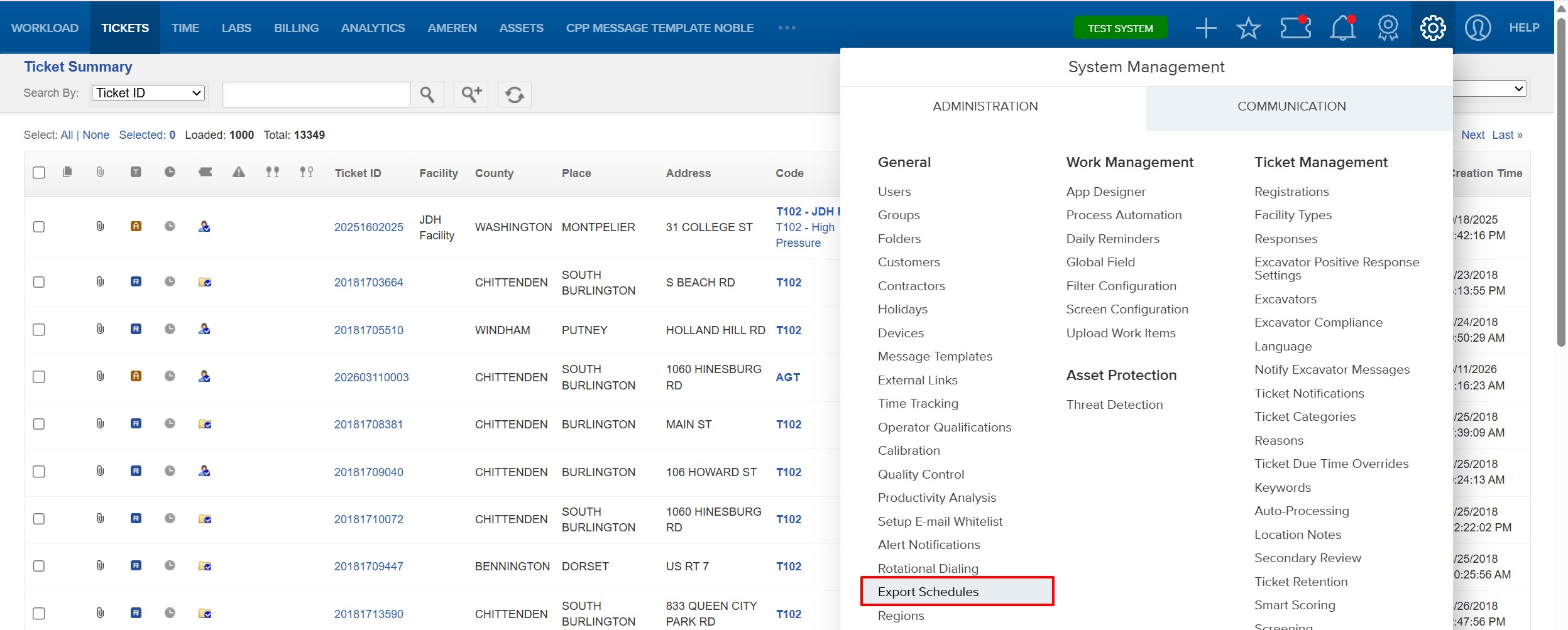
Things to Know:
- Adding or modifying connections and schedules is done from System Management > Administration, so this feature is typically limited to users with administrator-level access.
- SFTP (Secure File Transfer Protocol) encrypts file transmission; FTP does not. Use SFTP for sensitive data where possible.
- Available Options and Parameters vary depending on the Format you choose (for example, Include all item history is only available for the Work Items XML format).
- An Export Schedule keeps its saved configuration until an administrator opens the schedule and updates it — changes to Weekly/Monthly options, filters, or parameters only take effect once the schedule is saved.
- Export delivery can be made via a saved Connection (FTP/SFTP) or by Email, depending on the Type selected.
Key Benefits/Use Cases:
- Automated data delivery: Connect Export Schedules to your local FTP/SFTP system (or email) so ticket and work item data is delivered automatically without manual exports.
- Up-to-the-minute daily reporting: Teams relying on Daily Export Schedules for downstream reporting or integrations now receive data that reflects same-day changes, removing the lag from the previous static data source.
- Reporting cadence that matches your business: Weekly and Monthly schedules with new configuration options let administrators tailor exports to their organization's actual reporting cycles, reducing manual rework.
- Precise, limited exports: Parameters such as Status, Ticket Type Category, Folder, or One Call Center let you scope an export schedule to only the data your team needs.
How It Works:
Follow these steps to setup or enable:
Add or Modify a Connection
- Navigate to System Management > Administration > General > Export Schedules.
- To add a connection, click Add a Connection. To modify one, click its name in the Name column, then click Modify this Connection.

- Enter the Connection Information: Address, Name, and Type (FTP or SFTP).
- Enter the FTP or SFTP Information relevant to the connection Type.
- Click Save.
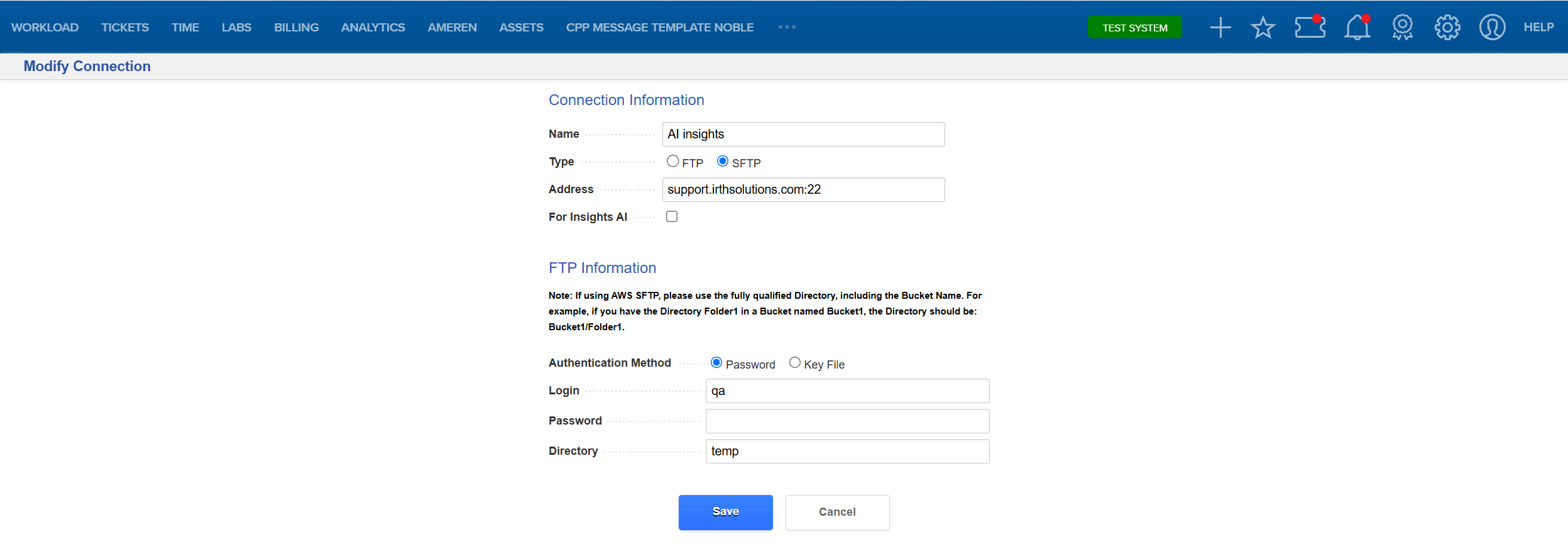 The Connection Details page appears with the information you entered.
Add or Modify an Export Schedule
- Navigate to System Management > Administration > General > Export Schedules.
- To add a schedule, click Add an Export Schedule in the left column. To modify one, in the Export Schedules section click its name in the Format column, then click Modify this Export Schedule.

- Configure the Export Schedule fields: Connection, Description, Enabled, Format, Frequency, Options, and Type.
- Configure the Options relevant to the chosen Format, including checking the Enabled box, if desired.
- Configure Parameters to limit the data included in the export, as needed.
- Click Save.
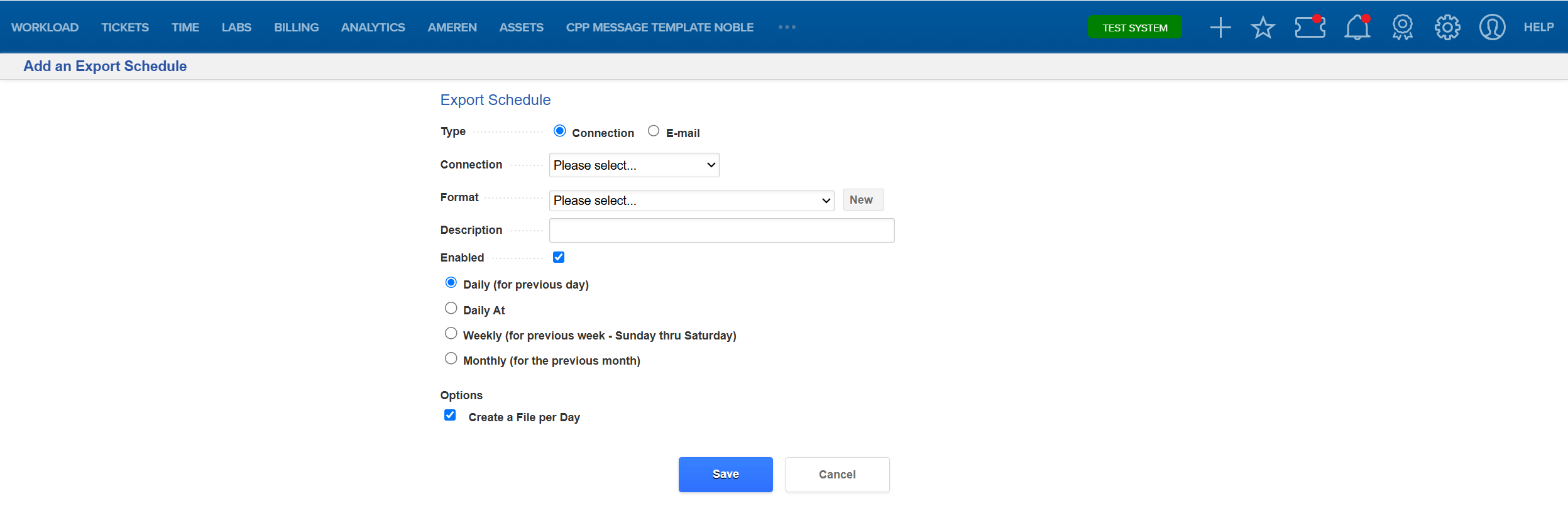
The Export Schedule Details page appears with the information you entered. Daily schedules automatically use the live database source — no separate setting is needed.
FAQ/Troubleshooting:
Q: What's the difference between an FTP and an SFTP connection?
A: FTP transmits files without encryption. SFTP encrypts file transmission and requires either a password or a key file for authentication, making it the more secure option.
Q: Do I need to configure anything for my Daily Export Schedule to use the live database?
A: No. All Daily Export Schedules automatically read from the live, read-only database — no configuration is required.
Q: Can I deliver an export by email instead of through a connection?
A: Yes. Under Type, choose Email and select an address already in the system, or enter one manually.
Q: Why is “Include all item history” not available for my export?
A: This option is only available when the Format is set to Work Items XML.
Q: What happens if I disable an Export Schedule?
A: A disabled schedule will not generate exports until it is re-enabled from either the Add/Modify page or the Schedule Details page.
Questions? Contact us!

Was this article helpful?
That’s Great!
Thank you for your feedback
Sorry! We couldn't be helpful
Thank you for your feedback
Feedback sent
We appreciate your effort and will try to fix the article